Sharing a window in your call
Rather not send a link? You can share the questions in Zoom, Teams or Meet instead. The link protects the questions better, so we recommend it when you can.
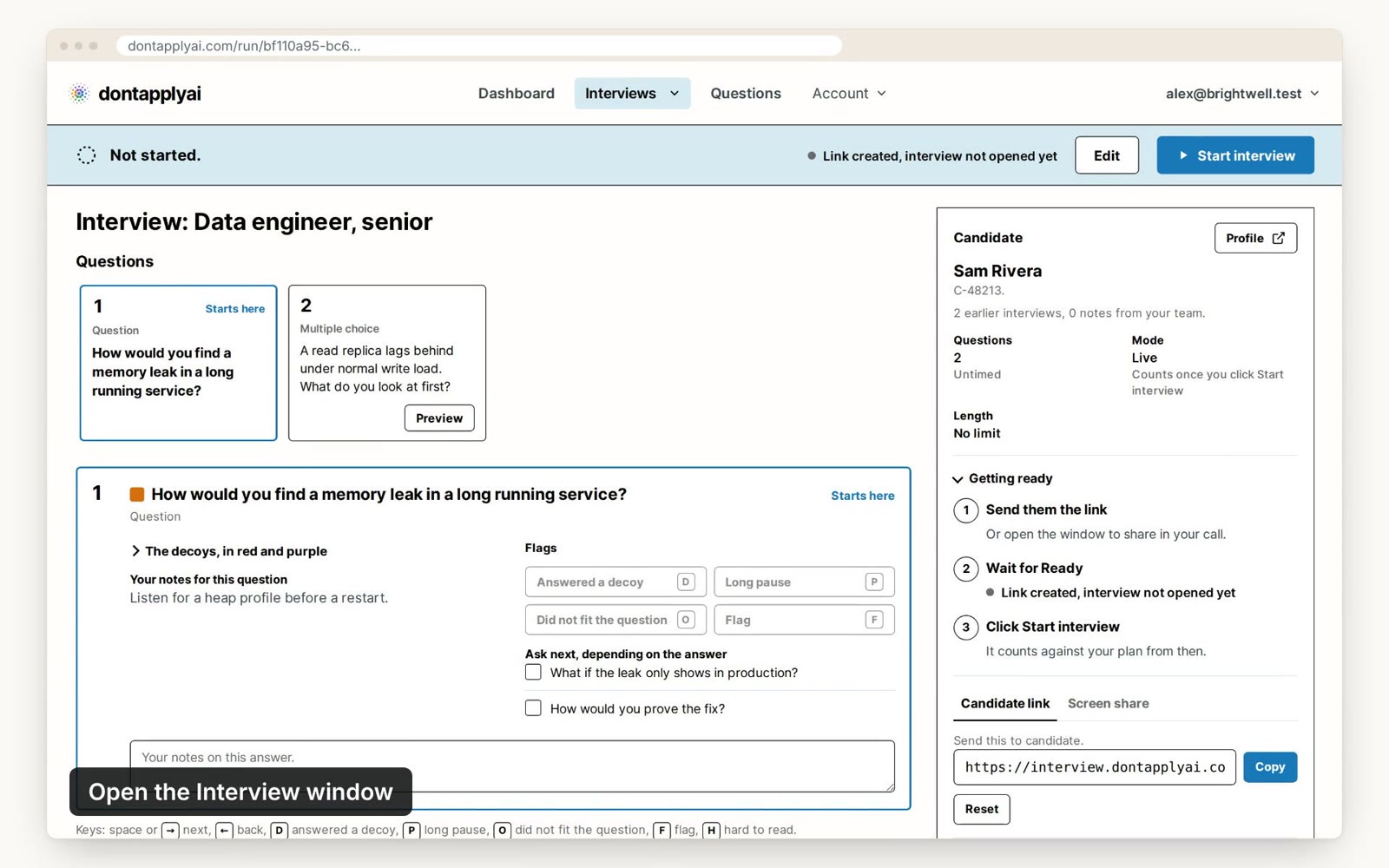
In this video guide
Step by step
To share a window:
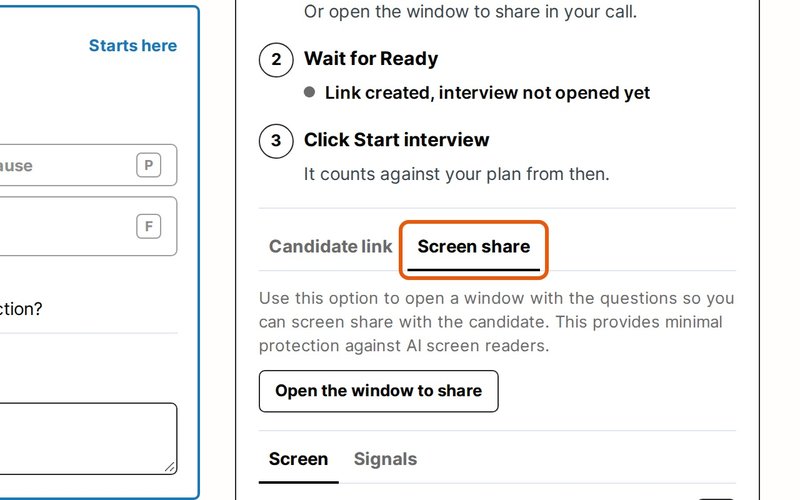
- Step 1
Click the Screen share tab in the control window.
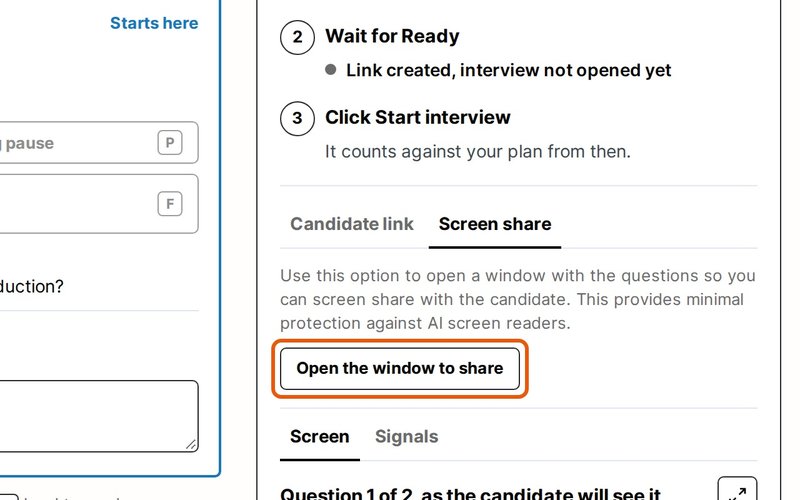
- Step 2
Click Open the window to share. A new window called "Interview" opens.
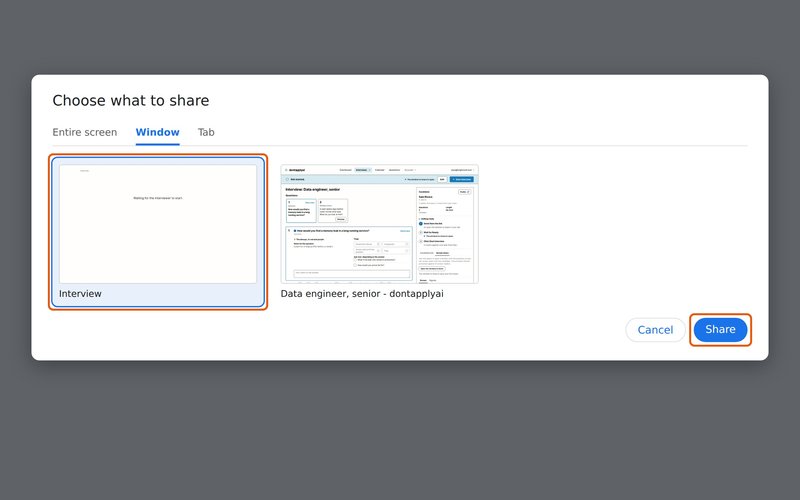
- Step 3
In your call, choose to share a window, not your whole screen, and pick the Interview window.
- Step 4
Click Start interview, tell your candidate which color to answer, and run the interview as usual. The Interview window follows along.
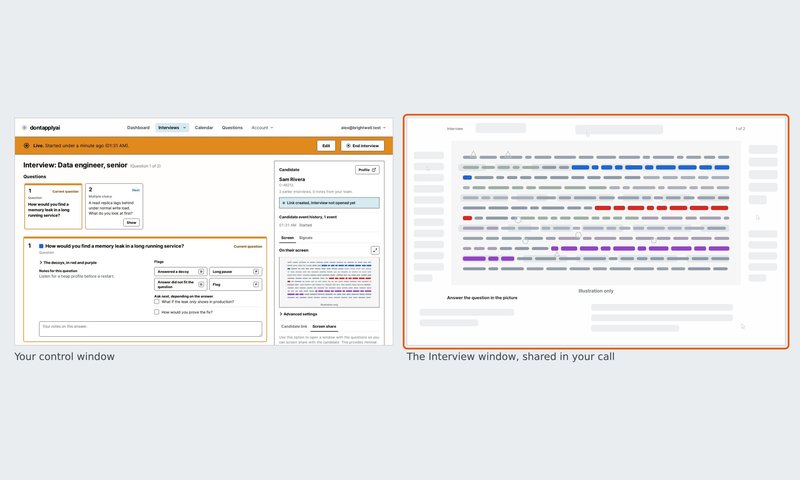
Note: Please share just the Interview window. If you share your whole screen, your candidate will see your control window, with your notes, whenever you switch to it.
Transcript
0:00 Rather not send a link? In the control window, click Screen share, then Open the window to share. A window called Interview opens.
0:11 In Zoom, Teams or Meet, share just the Interview window, not your whole screen, so your notes stay private.
0:18 Click Start interview, and tell your candidate which color to answer. The Interview window follows every question you show.
Still need help?
If you can't find the answer you're looking for, send us a message and we'll get back to you, usually within one working day.