During the interview
What you see, what the candidate sees, and what happens behind each slide.
In this video guide
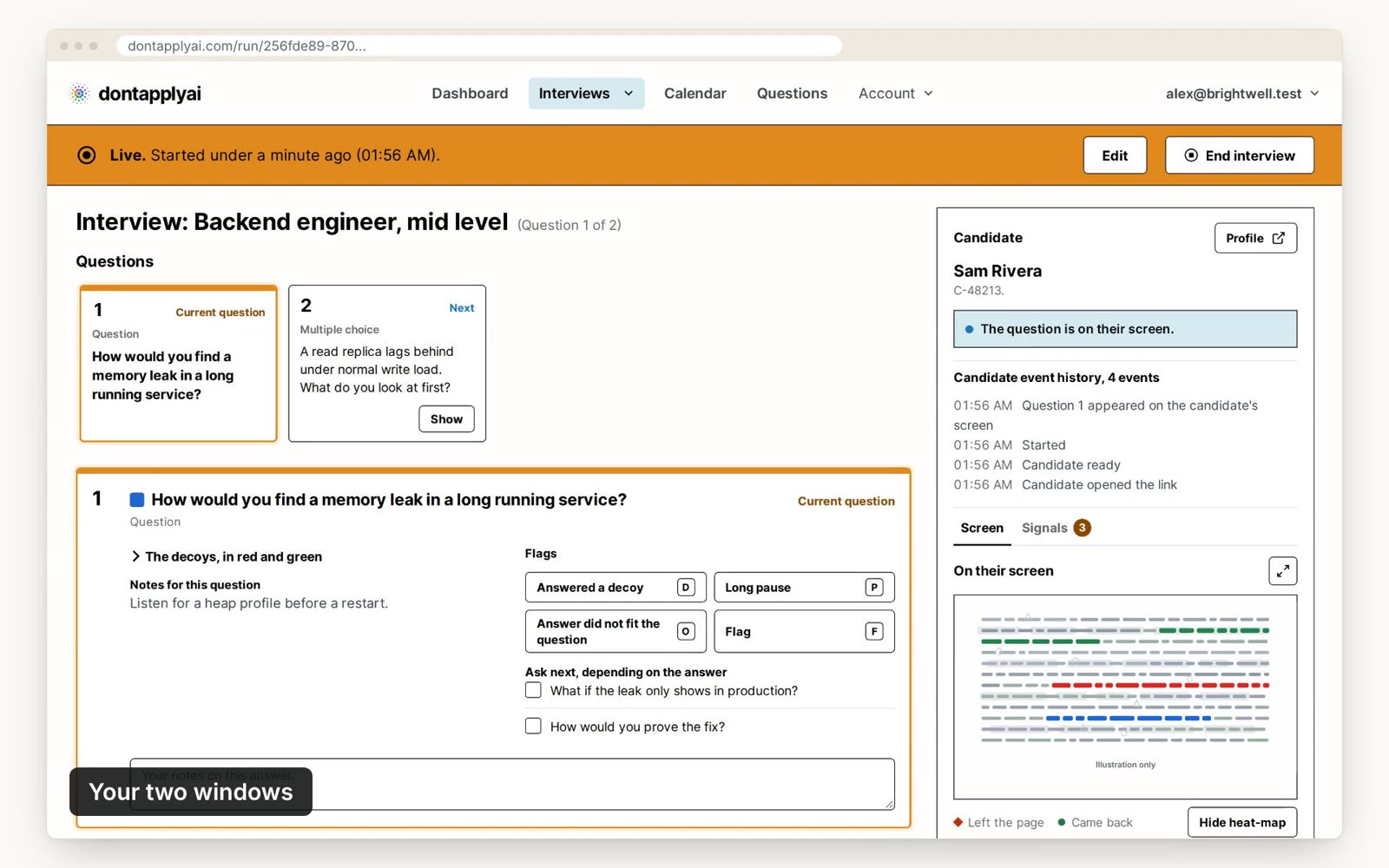
Your two windows
Your control window shows the real question, the decoys, your follow-up questions and your notes. Your candidate never sees it.
They see the slide, with the decoys in it, on the page they open from the link or in the window you share. You can see exactly what they see under On their screen.
Changing the slide while it is on screen
Under On their screen, in the Candidate card, you see the slide your candidate sees, and the controls to change it under Advanced settings below it. Click a ? to see what a control does.
- While the interview is live, Redraw, at the top, lays the questions out again. Your control window then names the real question's color, which may have changed.
- Under Moving icons, Icons sets how many icons fall across the slide, and Speed sets how fast.
- Under Your pointer, Show your pointer on their screen is selected, so a dot shows where you point on the slide. You can change its Shape and Size, or clear the box to hide it. While your pointer shows, the moving icons take its shape, and some look exactly like it.
Your candidate usually sees a change within two seconds. To make it bigger, click Expand, and press Esc to shrink it again.
While the interview runs, On their screen shows your candidate's whole page, with the slide in its place. Their pointer is the orange ring. The heat map shows where it went on the question, from blue where it passed to red where it stayed. A red diamond marks where it was when they left the page, and a green dot where it was when they came back. To hide the heat map and the marks, click Hide heat-map under the picture.
If your candidate switches to another tab or window, the event history says so, and tells you how long they were away.
If something changes your candidate's page, such as a browser extension, the questions stop and your control window says The candidate's page was modified.
The candidate's page
When your candidate opens your link, the page takes them through a few steps. Watch the video guide and follow each step.
The background behind each slide
In a window you share, faint decoy questions sit behind the slide, in colors close to the background, with several mouse pointers that look just like yours. On the page your link opens, the slide itself holds lighter questions and faint, larger text around yours. A person hardly notices them.
A tool reading the screen finds several questions instead of one, and a screenshot of a shared window doesn't show which pointer is yours. The background never contains your real question.
Screen readers skip the background.
Transcript
0:00 You run the interview from your control window, and your candidate never sees it. It shows the real question, your notes and the decoys, the other questions on their screen. The picture under On their screen shows exactly what they see.
0:17 To change the slide, click Advanced settings under it. Icons and Speed set how many icons fall, and how fast. Redraw lays the questions out again, and the color to ask for may change. To point at a question, select Show your pointer on their screen, then move your mouse over the slide.
0:37 If they use your link, you see their whole page, with their pointer as an orange ring. The heat map shows where their pointer went, and turns red where it stayed. The Candidate event history tells you when they switch to another tab or window.
0:51 In a window you share, faint decoy questions and mouse pointers like yours sit behind the slide. On the page your link opens, faint questions are part of the slide. A person hardly notices them, but a tool reading the screen finds several questions.
Still need help?
If you can't find the answer you're looking for, send us a message and we'll get back to you, usually within one working day.